The most common snag when you start with Shiftaru is this: "I imported my data, but when I ran matching I got zero results (or way too few)."
Almost every time it's a small settings mismatch, and once you know the order to check things in, it's fixed in a few minutes. This article is that checklist — work through it top to bottom.
🎉 Now live
Shiftaru is officially live. The free practice mode (sample data) needs no signup.
👉 https://shiftaru.com
First, narrow it down: which kind of zero?
- A: No people show up in the lists (0 customers, 0 staff) → an import problem
- B: People show up, but matching returns 0 / too few → a matching-condition problem
You can see the counts at the top of the schedule screen ("Customers ◯ / Staff ◯").
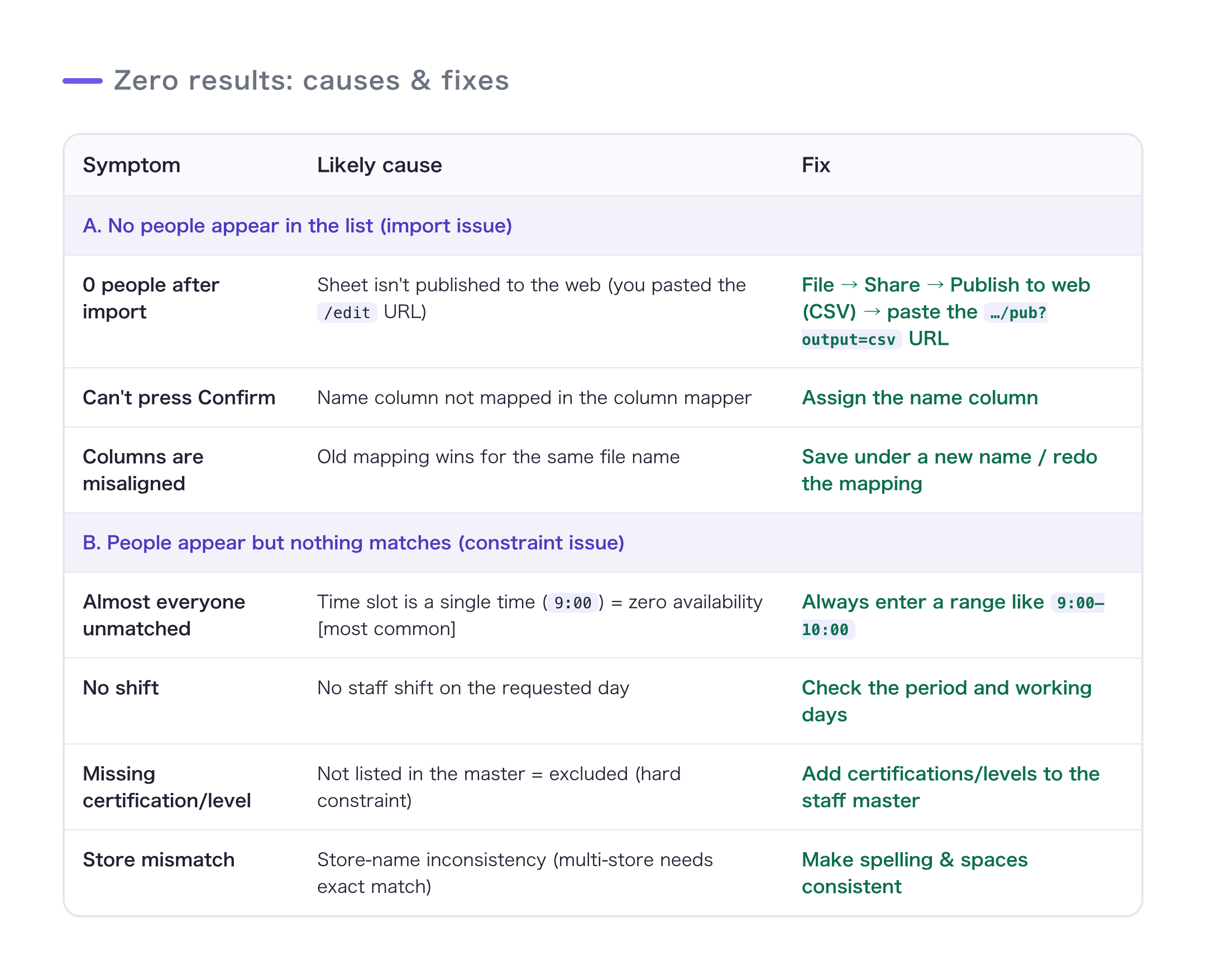
A: When no people show up in the list
1. Did you "publish the sheet to the web"?
This is the number-one cause. Pasting the …/edit URL from your browser's address bar won't load.
Publish the spreadsheet with File → Share → Publish to web → format "Comma-separated values (.csv)", then paste the …/pub?output=csv URL it gives you. (Step-by-step with screenshots in the Google Forms guide.)
2. Did you assign the name column?
When the column mapper appears on import, always assign the name column. If the name column is left unassigned, the confirm button stays disabled and you get zero rows.
3. Is an old mapping stuck to the same file name?
Column mappings are remembered per file name (or URL). If you change your column layout but import under the same name, the previous mapping takes priority and your columns shift. → Save it under a different name, or redo the mapping.
B: When people show up but nothing matches
On any "No match" row, open "See reasons" to view why the candidate was rejected — plus the "near-miss candidates." That's the fastest place to start.
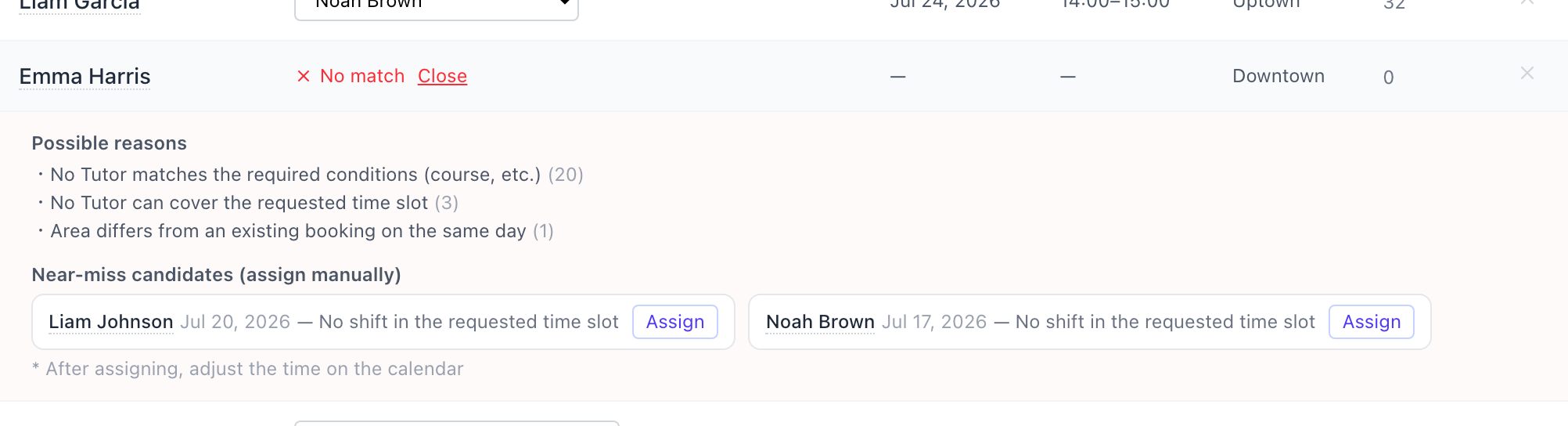
Here's what to do for each reason code.
4. Are your time slots entered as RANGES? (most important)
If a staff member's availability or a time slot is set as 9:00 (a single time), it's read as zero availability and almost nothing matches. Always enter a start–end range like 9:00–10:00. The same goes for the time slots in Settings.
5. No shift on the preferred date (no_shift_on_date)
There isn't a single staff shift that can work on the customer's preferred date under those conditions. Check the target period and your staff's working days.
6. The times don't line up (time_mismatch)
There's a shift, but it doesn't cover the requested time slot. Re-check your time-slot entries (as ranges).
7. Excluded for missing certification / level (cert_mismatch / level_mismatch)
Certifications and levels are hard constraints for safety. Any staff member whose master record doesn't list them is treated as "not qualified" and excluded. If needed, enter the certifications and covered levels in the staff master.
8. Inconsistent store names (multi-store / Type B)
Multi-store setups match store names by exact match. "A Store" vs. "A Store" (full-width vs. half-width) or a stray leading/trailing space makes them different stores. Make the spelling identical on the request side and the staff side.
Still stuck? How to isolate it
The fastest way to isolate the problem is to try the same settings in practice mode. If matching succeeds on the sample data, the cause is on the data side (publishing, columns, time-slot formatting), not your settings. If practice mode also returns zero, your settings may be too strict (for example, the triple constraint of certification + level + time).
Wrap-up
- First tell apart "no people (import)" from "no match (conditions)"
- Zero on import → 1. publish to web, 2. name column, 3. old mapping
- Zero on match → 4. time-slot ranges (most important), 5. preferred date, 6. time slot, 7. certification/level, 8. store name
- When in doubt, isolate it with "See reasons" and practice mode
Nine times out of ten it's #4 (time-slot ranges) or #1 (publish setting). Start there.
- ▶ https://shiftaru.com — free practice mode, no signup
- ▶ Read more: Shiftaru Blog